Posts

Changing Run Once entries in multiple Virtual Center customization specs...

Image
Summary: Script built to update multiple Virtual Center Windows customization scripts in one easy step. Powershell Code: http://docs.google.com/View?id=ddvthst9_15fsx7vdgb Details: I have several customization scripts that all are configured in almost the exact same way minus IP gateway settings (thus the need for many specs). I needed to add a couple more run once commands to to fix an issue we were having with McAfee ePO agents that were statically installed on templates. The agent apparently generates a unique GUID and mac address in the registry associated with the systems name. To fix this when cloning the template I needed to delete these two registry entries so ePO would regenerate new ones when the cloned template builds it would register properly with ePO. There is probably a bit more that can be done with this script, but it’s done what I need it to do for now.

Send photos from the iPhone to a Japanese Cell Phone

Image
Summary: To successfully send e-mails w/ an attached photo from an iPhone to a Japanese cell phone, the photo needs to be resized to either 640x480 or 320x240. Photos taken with the iPhone's camera do not meet these size requirements. One app that I've discovered to help with that is called MailPhotos . It's fairly easy to use and has worked fairly well in my testing. Read below for detailed information. [Update: Does not apply to all Japanese cell phones apparently. Seems to depend on a combination of phone and/or carrier. My in-laws use AU, which this app works for, my friend in Tokyo uses Docomo and has a crazy phone that works fine with the default size. ] Details: One of my main complaints with using the iPhone was the inability to send photos via e-mail to my friend's cell phones. I couldn't figure out what the issue was for the longest time, until recently when testing. Seems any photo larger than 640x480 sent to a Japanese cell-phone doesn't seem...

Gather disk.usage.average stats per Datastore

Image
Image via Wikipedia Summary: This script isn't perfect as there can be some exceptions to the rule, but it can give you an idea of how much you are utilizing to each of your datastores to determine if there might be a bottleneck. Get-DatastoreAvgUsgKBps.ps1 Details: The script first gathers your datastores, then does a get-vm to list all VM's located in that datastore. For each VM, get-stat is run to gather the disk.usage.average metric for the date range specified in the $start and $finish variables. Once that data is gathered for that VM, it takes the KBps data and mathematically averages those numbers then continues to the next VM in that Datastore. After averages for all VM's in the datastore have been calculated, they are all added up to represent the Average disk usage KBps against that datastore. This is repeated for each datastore. Exceptions: If a system has been vmotion'd to another datastore within the specified date range, the averages could be thrown off. S...

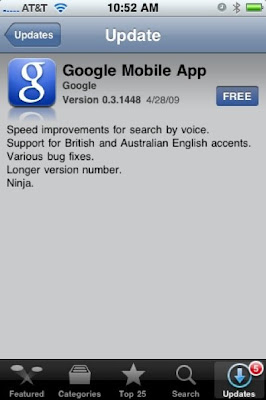
iPhone Google App now includes Ninjas!

Image
The iPhone Google App now includes Ninjas....freakin sweet! LOL

Convertto-html, firefox, chrome, CSS rendering problem

Image
Summary: To prevent whitespace and/or bloat in your html file use the " -encoding ASCII " switch for the " out-file " cmdlet. Problem Statement: I've finally gotten a script to pull a bunch of information then convert it into a fairly clean looking html page. It renders perfectly hosted on IIS with an IE browser pulling CSS and JS for readability and sort capability. The problem is that firefox, chrome, and safari doesn't render the CSS style and JS. Here is the kicker. It's not that the html code, CSS, or JS are bad, but that the html file seems to be bloated w/ white space. So, powershell generates the html code that should be only equal to 3KB, but the file ends up being double that @ 6KB. So you can literally copy and paste the code into a blank txt doc, convert it to htm, then low and behold, it renders just the same in all browsers. I'm working to figure out how I can clean up this whitespace. So far, just grabbing the file info, w/ th...

New Powershell VMWare Summary Report Script using functions

Image
UPDATED and Optimized Script can be found HERE. I'm hoping this is easier to read for any interested. Things I track in this script are as follows: Cluster Name # of Effective Cluster Hosts # of VM's in the cluster # of allocated vCPU's VMWare supported maximum of vCPU's per core Datastore full size Datastore free space Datastore used space as a percentage Above is an example pic of what the script generates and how it should look. The script is posted here . I suggest copying and pasting into a Powershell editor like PowerGUI or Powershell PLUS for readability. It automatically generates an html and stylesheet file and places them on your C drive. You can change a bunch of variables that are commented toward the top of the script. Hope you can find this useful. [Update: I've added sort capability to the code via a Javascript library which can be downloaded here . ]

Powershell html formatting using convertto-html cmdlet

This was took me a little bit to figure out, but I finally did. Wasn't able to find this solution on the web so I figure I would post what I had to do to make it work. I basically had a 'if else' statement that I wanted the return of an if statement to highlight in red and be bolded in html. Unfortunately, the convertto-html cmdlet converts ' ' to html friendly formats for display like '<'and '>'. So here is the key: ...code... Convertto-Html foreach {$_.replace("<"," ")} Afterwards, you can pipe to a file where the formatting you placed in your code stays intact.