Posts

Showing posts with the label PowerCLI

vCenter: Cluster Skip Quickstart Workflow via API

Image
Summary: Basically, whenever you reset vCenter, you might end up w/ a warning on a cluster running vSAN that's just annoying.  To circumvent, this from alerting, you need to disable quickstart.  Easy enough via UI, but API is a little weird here. Details: For one, code capture doesn't seem to understand this.  So no help there unfortunately.  Secondly, nothing named "quickstart" is in the API, so made this somewhat annoying to try and find.  Seems like someone had this question on the VMware communities forum 2 years ago w/ no answer.   Someone asked me internally, so I had to dig into it. Basically, two things: You can create a cluster w/ quick start disabled from the get go by passing a false boolean to a parameter named: "InHciWorkflow" via API/PowerCLI call Secondly, to "skip QuickStart" on an already created cluster, you can call a method called: "AbandonHciWorkflow" So yeah, you can see how "quickstart" and "HCIWorkfl...
Powershell: Unable to install modules due to missing nuget package provider, cannot install nuget

Summary: Had this issue in Windows 2016 on a system that I know has internet.  Basically came down to enabling tls12 in order to enable powershell to download and install nuget package provider and modules from powershell gallery. Example Errors: WARNING: Unable to download from URI 'https://go.microsoft.com/fwlink/?LinkID=627338&clcid=0x409 WARNING: Unable to download the list of available providers. Check your internet connection. PackageManagement\Install-PackageProvider : No match was found for the specified search criteria for the provider 'NuGet'. The package provider requires 'PackageManagement' and 'Provider' tags. Please check if the specified package has the tags. At C:\Program Files\WindowsPowerShell\Modules\PowerShellGet\1.0.0.1\PSModule.psm1:7405 char:21 + ...     $null = PackageManagement\Install-PackageProvider -Name $script:N ... +                 ~~~~~~~~~~~~~~~~~~~~~~~~~~~~~~~~~~~~~~~~~~~~~~~~~~~~~~~~...

PowerCLI: Getting HCL DID, VID, and SVID information.

Image
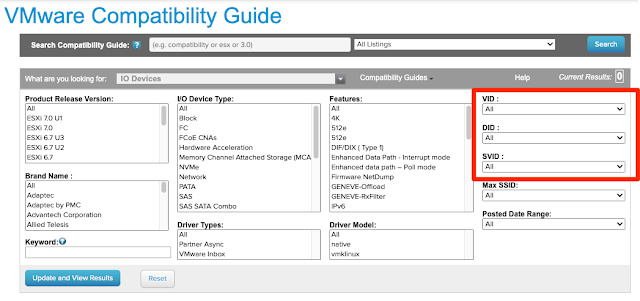
Summary: Searching for IO devices on VMware's HCL list  is easier, if you have data like DID, VID, and SVID.  Thought I posted on this awhile back, but apparently forgot to do so.  Below is a script that you can run on an ESXi host to get those values needed for the PCI devices you are trying to look up.

PowerCLI: New-HCXMobilityGroup - A parameter cannot be found that matches parameter name 'source'

Summary: Running the above cmdlet and passing what is apparently the only required parameter of name, results in the above obscure error. It refers to a parameter that doesn't appear to exist for the cmdlet.  There is also the -migration parameter that looks for a <HCXMobilityGroupMigration[]> object array that no other HCX cmdlet provides. Long story short, informed VMware, they are going to fix the cmdlets and their documentation.  In the meantime, here are some examples that VMware's GSS shared to be able to use the New-HCXMobilityGroup cmdlet. Here is the code:

PowerCLI: The SSL connection could not be established, see inner exception.

Image
Summary: Unable to connect to ESXi/vCenter server with Connect-VIserver cmdlet, get the following error: "The SSL connection could not be established, see inner exception." Be sure to "Set-PowerCLIConfiguration -InvalidCertificateAction:Ignore" if you plan to connect to an ESXi/vCenter that does not have trusted certificate.  Interestingly, something must've changed recently because the PowerCLI module actually would output a more descriptive message about setting your PowerCLIConfiguration. This appears to be the case w/ Powershell Core 6.1.  I'm actually unsure when this behavior started happening and whether is module or powershell related.  Regardless, figured I'd post this since I was initially confused myself when running some things on another system.

VMware: Get CDP/LLDP info from ESXi/vCenter hosts.

Summary: Had to get CDP/LLDP long time ago and never posted it.  Hosted on gist.github.com for anyone to consume and manipulate how they please.  Definitely been useful and faster since it'll actually ignore disconnected nics. Also automatically adjusts for CDP or LLDP.  I 'think' I wrote this, but I borrow so much from Lam and LucD that they deserve credit for being so awesome anyway.

VMware: NSX: Using PowerCLI/PowerNSX to view distributed firewall (DFW) rules in a table format.

Image
Out-GridView Example Summary: This was kind of a fun exercise and helpful considering the NSX plugin kinda blows, in flash client at least.  Have yet to take a look at HTML5 one that was just released.  Was asked if we could output currently configured DFW rules.  Below you will find what I slapped together.  If it's useful to you too, great.  Also, please feel free give me feedback. It will basically give you the following: Rule Number  This is kind of a guess in that it assumes that rules will pull down from API in the correct order at runtime. Rule ID Rule Name Source Destination Service Ports Action appliedTo This script requires the following powershell modules: vmware.powercli powernsx Script:

VMware: vSAN Disk Group Cache Drive Dead or Error (VSAN Absent Disk)

Summary: A cache disk failed in my host taking along with it the disk group.  This is expected behavior, but for some reason, the disk group also disappeared from GUI so I couldn't decommission the disk group to basically replace the cached drive.  So, had to do it through powercli/esxcli.  Wish I took a screenshot, cause it was kind of annoying. PowerCLI Example: Once you've deleted the offending disk group, you can now create a new disk group utilizing the replaced cache disk and former capacity disks.

VMware: vSphere Scheduled Tasks w/ PowerCLI (not to be confused w/ Windows scheduled tasks)

Image
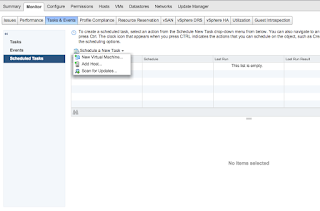
Summary: Question was posted in the communities on how to find scheduled tasks configured against a VM.  I remembered doing it long ago, but I never posted about it.  Also found it weirdly hard to find via Google, so I'm posting here for my own reference or anyone else needing it for that matter. Example:

VMware: Migrating Management(Mgmt) vmk to DVS/VDS fails when moving both vmnic and vmk at the same time.

Image
Summary: Quite simple, had a script to move physical nics to DVS/VDS w/ management vmk at the same time.  Typically this works w/o issue, but for some reason kept failing.  The answer was dead simple... Resolution/Workaround: Spanning Tree Enabled? Enable portfast on the switch ports. Or Spanning Tree not available? Move one physical link at a time (assuming more than one physical link available) Wait for uplink on DVS to come online, then move management/mgmt vmk Explanation: Basically, the switch ports that the ESXi servers were uplinked to did not have ' portfast ' (physical switchside config) enabled.  Without ' portfast ', when moving a physical nic from a standard vSwitch (or vice versa), there is a negotiation downtime the host incurs as the switch/host essentially renegotiates the connectivity.  It's a short window (5-10 sec) that the port goes 'offline', but it's enough for the migration of vmk and physical nics at the sam...

VMware: vSAN 6.6 not showing all available disks when attempting to claim...

Image
Summary: Was going through and attempting to setup new vSAN cluster but noticed that the wizard was only showing 3 of 4 disks from 3 of 4 hosts and 0 disks from another host.  This appears to be by design where the setup wizard will only target disks that have 0 partitions.  Makes sense. This, however, is not obvious in the setup. Solution: Simply delete any partitions from those disks that you'd like to have vSAN claim.  You can do this enmasse via PowerCLI or the Web Client interface (as pictured below). [ Warning: This is a destructive process so be sure that you know absolutely for certain that you are targeting the correct storage devices.  This is especially true if you plan to script this process.] Erase Partition in Web Client The above process would suck if you were doing it against a large cluster, so learn to do it in powershell or some other automated method. PowerCLI Method: $TCluster = Get-Cluster TargetClusterName $TVMHosts = $TCluste...

VMware: Invalid Configuration for device # when deploying OVF/OVA...

Summary: Ran into this message when attempting to import an OVF/OVA to vCenter via Web Client from a Mac.  Not all OVA/OVF's have this issue. Workaround(s): Upload and deploy from a Windows system OR Upload and deploy to a local datastore if available. OR Use OVFTool to deploy Example: ovftool -ds=NameofTargetDatastore -n=NameYouWantVMtoBe --acceptAllEulas - - net:bridged =NameofDVSorStdPortGroupYouWantVMattachedTo C:\Path\Turbonomic.ova vi://username %40 mysubdomain.myrootdomain.suffix@vCenterNameorIP/virtualDatacenterName/host/ ClusterName %40 translates the @ symbol for the OVFTool if you need to authenticate using standard AD UPN or SSO domain user. If Linux/Mac, replace C:\Path\Turbonomic.ova with /Path/Your.ova -net:bridged switch is optional and can also be different depending on how the OVF has that parameter defined. Target is Cluster assumes DRS enabled, go one further down and put hostname after cluster if DRS is not available. OR Use ...

PowerCLI/Powershell: vCenter Slack Bot

Image
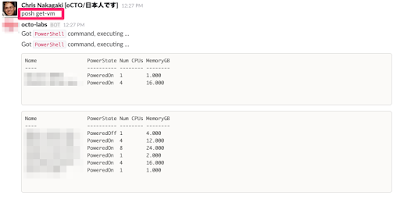
An OVF from Opvizor that gets deployed to any VMware environment for powercli slack integration.  Very simple deployment model.   Current Model: Appliance can currently only target one vCenter and one slack bot. Permissions are granted via account designated in OVF config.  (read only recommended for obvious reasons) all commands requested via slack bot run in context of this account. Multiple appliances/vCenters can target one slack bot.  (Ref.1 of two appliances/vcenter targeting one slack bot) Appliances can also be assigned to individually different slack bots.  (Ref.2 of two different slack bots) Both models can be achieved by simply doubling up OVF deployments.  One that targets a singular bot, while the other targets a default/catch-all bot. Utilizes powerclicore  so, there are limitations to what powercli cmdlets can be utilized and same limits that powershellcore may have too. References: ref.1 ref.2 Links: ...

Powershell: Docker PowerCLI Core and Microsoft/Powershell - (docker -it switch)

Image
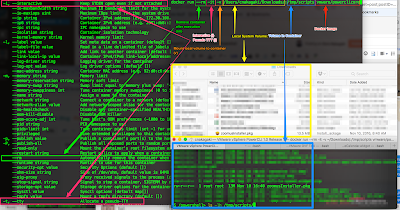
Assumptions: Docker running on MacOS.  (Likely runs the same on any other OS, minor differences) Summary: While I appreciate William Lam's posts on Docker and PowerCLICore ; I'm kind of dumb and need explanations on the simpler aspects of docker .  So for those who would like to know what the options in docker mean (to explore at least) and why it can looks strange even looking at 'help', here is how I understand it.  This can also be applied to Microsoft/Powershell container image as well. Details: docker run --rm -it -v /Users/cnakagaki/Downloads/:/tmp/scripts vmware/powerclicore The above line will pull the powerclicore container from docker hub  (if not already 'pulled'), run it in interactive mode (w/ pseudo TTY, needed), and mount my local Downloads directory to /tmp/scripts within the docker container. The part that mainly threw me off was the syntax combination of '-it' which essentially translates to -i (interactive) and -t (pseud...

vSphere/PowerCLI: Convert to Virtual Machine is Greyed Out

Summary: Assuming permissions are correct, this occurred in my environment, but unsure as to why.  Regardless, this is a script you can use to re-register multiple templates to your vCenter's inventory. It will simply get a list of templates, their folder location, host, etc, remove it from inventory and re-add it back exactly where it was.  This is in relation to KB2037005

vSAN: Configure an all-flash vSAN using PowerCLI

Script that I'm putting together to configure new all-flash vSAN clusters.  Still a work in progress, I plan on making it into a function once I've worked out the kinks.  Hosting it on gist.github.com so feel free to make suggestions.

vSphere: Security Vulnerability w/ "Shared Folders" Feature

Image
Since this appears to be making the rounds, I figured I'd post a little Powershell code on how to figure out if a guest's VMware tools is affected.  It only appears to affect Window's so this little bit of code can help you determine whether the "Shared Folders" feature is installed.  I posted this to communities too. $VM = Get-VM NameofVM $Reg = [Microsoft.Win32.RegistryKey]::OpenRemoteBaseKey('LocalMachine', $vm.extensiondata.summary.guest.hostname) $RegKey= $Reg.OpenSubKey("System\CurrentControlSet\Control\NetworkProvider\Order") $RegKeyValue = $RegKey.GetValue("ProviderOrder") If($RegKeyValue -match "hgfs|hgs"){Write-Host ("$($VM.Name) might be affected by VMSA-2016-0001." + " String Values hgfs, vmhgs, and/or vmhgfs need to be removed and VM rebooted. ESXi Host should be patched prior. RegistryPath: $($RegKey.Name), ProviderOrderKeyStringValue: $($RegKeyValue)") -ForegroundColor:Red} Else(Wr...

vSphere: no coredump target has been configured (fix it w/ powershell)

Image
Was able to fix the above error by following steps outlined here: http://blog.ukotic.net/2015/05/31/no-vmkcore-disk-partition-is-available/ So that inspired me to write how you can do this against multiple hosts via a scripted method.  I started by simply exporting a list of servers via PowerCLI: Get-Cluster myCluster | get-vmhost | select name | out-file -FilePath D:\scripts\Output\clusterlist.txt -Encoding ascii I opened the txt file, removed the 'name' header, then ran the following: for server in $(cat ~/Desktop/clusterlist.txt); do ssh -o UserKnownHostsFile=/dev/null -o StrictHostKeyChecking=no root@$server 'esxcli system coredump partition set -u; esxcli system coredump partition set --enable true --smart' done A better way to do this would be to use plink, above was a quick and dirty way for me.  So here is a way to do it all from Powershell only that quite frankly would've saved me the trouble of pasting the password in 20 times: $Creds =...

Powershell: Out-Gridview -passthru switch

Image
My co-worker saw this on twitter and sent this to me: get-vm | out-gridview -passthru | open-vmconsolewindow Upon first glance, I was thinking: "Well, that'll kill my machine trying to open 10000 VM consoles". But upon closer inspection, it works a bit differently than I first thought. Basically what the above does is this: Gathers a list of VMs Outputs that list into gridview Clicking OK on the highlighted row, passes thru the highlighted 'object' to the next command. You can also select multiple rows and have them all pass to the next cmdlet.   I assume this will only work if the next cmdlet knows how to handle multiple objects. In the case of Open-VMConsoleWindow, it does work. Open-VMConsoleWindow takes in the highlighted object and runs. I didn't realize out-gridview had a passthru option, but now that I do, that can certainly make interactive scripts easier when I want someone to make a selection.  Obviously when I want to be lazy. ...

PowerCLI: Configuring an All-Flash vSAN

Image
From my understanding all-flash vSAN works like this: Caching Tier is 100% Writes. (Write Buffer) Capacity Tier is Mixed-Use With this in mind, I ordered Dell R730's w/ two types of drives.  Two high write endurance SSD's and Four Mixed Use SSD's. Short Story: Here is the script I created to 'tag' the mix-use drives as flash capacity: #Enable All Flash vSAN Intelligently Add-PSSnapIn -Name VMware.VimAutomation.Core -ErrorAction SilentlyContinue $TargetHosts = Get-VMHost $CacheDiskVendor = "TOSHIBA" $CacheDiskModel = "PX02SSF040" $CapacityDiskVendor = "TOSHIBA" $CapacityDiskModel = "PX02SMF040" Foreach ($VMhost in $TargetHosts) { $ESXCLI = $VMHost | Get-ESXCLI $Storage = $VMhost | Get-VMHostStorage Foreach ($SCSILUN in $Storage.ScsiLun) { If ($SCSILUN.Vendor -match $CapacityDiskVendor -and $SCSILUN.Model -match $CapacityDiskModel) { $ESXCLI.vsan.storage.tag....