Posts

vCenter 4.0 U1 Performance Statistics w/ mix of ESX 3.5 and 4.0 Hosts

Image
Configuration: ESX 4.0 U1 ESX 3.5 U4 vCenter 4.0 U1 Issue: Discrepancy between tracked metrics and “Statistics Level” set in vCenter.  For instance, Level 1 Statistics Level in 4.0U1 now includes “CPU Ready” in historical tracking.  In vCenter 2.5, this metric was only historically tracked @ Level 3.  However, this seems to only apply to VM’s hosted on ESX 4.0 AND vCenter 4.0.  If the VM is hosted on an ESX 3.5 system, then that metric is not tracked.  Another possible cause for lack of historical metric data may be that SQL jobs are not completing properly.  See SQL Job resolution section. Hypothesis: I’m guessing here, but this is likely due to the way ESX 3.5 identifies the metric to vCenter which is probably as Level 3.  Below is what you might see when looking @ a VM’s performance on an ESX 3.5 and 4.0 host. Examples: ESX 3.5 VM w/ vCenter 4.0 Stat Lvl 2: ESX 4.0 VM w/ vCenter 4.0 Stat Lvl 2: References: http://www.vmware.com/pdf/v...
iPhone 文字バケ(MojiBake) gMail

Summary: Sending and receiving emails from the iPhone mail app with Japanese characters are unreadable due to mojibake. Details: This seems to only occur if you use gMail's ActiveSync option by setting up your account on the iPhone by selecting Microsoft Exchange as the account type. Workaround: To remedy this, use either POP or IMAP when setting up your 'mail' account. You can still have your iPhone sync contacts and calendars seperately.

%%TITLE%%

%%CONTENT%%

VM Storage Balancer

Image
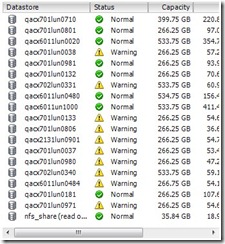
One thing I’ve noticed in vCenter 4.0 is that it now has alarms to monitor datastore sizes and places little ‘warning’ or ‘alert’ icons.  I like it, but it also annoys me because I know I need to do clean up and make sure each of our datastores has a minimum of 20% free space.  So here we are: Move-VMStorageBalance.ps1 Summary: Running this script will attempt to storage vMotion systems in a specified cluster around to datastores that have more than x% of free space before and after the move. Systems with specified DRS rules are omitted by default.  I’ve left some defaults defined in two variables that you will need to change to work for your environment. Requirements: Powershell 2.0 PowerCLI 4.0 vCenter 4.0 or ESX 4.0 Disclaimer/Caveats: Use this script @ your own risk, I take no responsibility for any awesomeness that might occur.  Test, test, and test more. Script may be SLOW as it works against 1 VM at a time. Fast if ...

Windows 2008 IPv4 gateway keeps disappearing after reboot…

Image
Config: Windows 2008 Std/Ent Sp2 x86 Summary: After reboot of system, the system stops responding to pings and RDP. When accessing IPv4 settings, the gateway is missing, and will blank out every time. Workaround: Regedit Navigate to HKLM/System/CurrentControlSet/Services/Tcpip/Parameters/Interface/%CLSID% %CLSID% = A unique ID that is associated with each network adapter that you have on the machine. You should have one for each adapter installed on your server. Change the "DefaultGateway" Regkey and manually type in the correct IP.

Finding local networked devices via your Mac’s web browser by name instead of IP.

Image
Summary: Unable to connect to locally available network devices via their friendly name. Config: Mac OS 10.x (10.5 or 10.6) Details: I’ve found this to be only true for Macs. For example: When I try to connect to my NAS’s web admin console via the name I gave it ( http://zterastation ), my Mac cannot resolve the name. Yet, my Mac does find it by name in the list of available drives to connect to. Seems the fix is simply to append ‘.local’ to a locally available network devices friendly name. As so, http://zterastation.local . This could simply be in the way my router configures my DNS entry order, but does not seem to matter to my windows systems.

Exploring VMWare's API using PowerCLI Get-View

Image
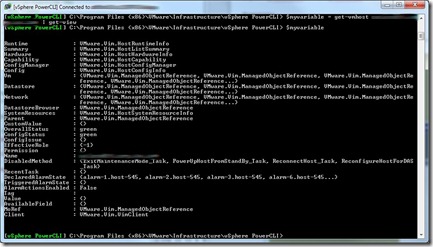
Summary: How to explore properties of objects using PowerCLI’s Get-View cmdlet. Details: Figure out the object you want to dig in deeper about. For example, finding out all properties available about an ESX host. Declare your variable, run the get-vmhost cmdlet, then pipe that to get-view, like so: 1: $myvariable = get-vmhost myesxserver | get-view Now by simply typing $myvariable at the powershell prompt, I’ll get a return like this: If I want to find out more about what is under the “Summary” property, I can simply type $myvariable.summary then hit enter. You can continue to do dive deeper to find the information you are looking for quickly and effectively by using this method. The ‘tab’ auto-complete function also works. Cheers!