Posts

vCOps Enterprise 5 vApp LDAP bug? (One or more users already exist and haven’t been imported)

Image
Summary: I had been having issues w/ our deployment of the  vCenter Operations vApp.  The Web GUI interface has two pages, https://vCopsServerName/vcops-vsphere and https://vCopsServerName/vcops-custom .  It seems vcops-vsphere simply uses vCenter privileges to determine whether you can login and what you can view.  vcops-custom however does not and has a separate set of permissions it uses to determine a user’s access authority.  They both however utilize the same useraccount table in the postgres database. Workaround: This KB contains the steps needed to workaround the LDAP import problem: http://kb.vmware.com/selfservice/microsites/search.do?language=en_US&cmd=displayKC&externalId=2013440 Step 2 was incorrect as of this post date, it should read as follows: # su postgres # psql -d alivevm I’ve let VMWare and @VMWareKB know of the typo.  So it should get corrected. Details: I found that when I login into vcops-vsphere, it uses my permissi...

Failed to deploy ovf package: Operation Timed Out

Summary: I’ve found this can occur when you attempt to deploy to vmfs w/ formatted blocks not equal to 1MB.  This only applies to vmfs 3.33 and earlier.  vmfs 5 or vSphere 5 formatted datastores should not see this issue as they are all formatted in 1MB block sizes. Workaround: Deploy OVF to a 1MB block sized datastore. Side Note: I’m wondering if deployment fails because the vmdk’s were originally created on 1MB datastore’s?

CD-Rom connected to another client (VMWare vSphere ESX)

Image
Summary: VM will not vMotion because CD-rom is detected as mounted by another user.  Option to disconnect or remove CD-rom is unavailable/grayed out under settings of VM. Resolution: Open the VM’s Console, select the CD-rom drive icon and select disconnect. As obvious as this seems, I found myself chasing a rabbit trying out methods to fix this issue.  This method worked in vSphere 4.1 Update 1.  Later revisions should too, not sure about earlier versions.

PowerCLI: UserVars.CIMoemProviderEnabled, changing to a value of 1 (or 0)

Summary: This value appears after installing the Dell OMSA vib for ESXi 4.1.  Tried changing this value to 1 using PowerCLI proved a bit more difficult than I originally thought, even cheating w/ Onyx. Example: Using this: $changedValue = New-Object VMware.Vim.OptionValue[] (1) $changedValue[0] = New-Object VMware.Vim.OptionValue $changedValue[0].key = "UserVars.CIMoemProviderEnabled" $changedValue[0].value = 1 $_this = Get-View -Id 'OptionManager-EsxHostAdvSettings-00000' $_this.UpdateOptions($changedValue) I’d get this ‘useful’ error: Exception calling "UpdateOptions" with "1" argument(s): "A specified parameter was not correct. " At line:1 char:21 + $_this.UpdateOptions <<<< ($changedValue)     + CategoryInfo          : NotSpecified: (:) [], MethodInvocationException     + FullyQualifiedErrorId : DotNetMethodException Solution: Apparently the ‘value’ property needs to be dec...

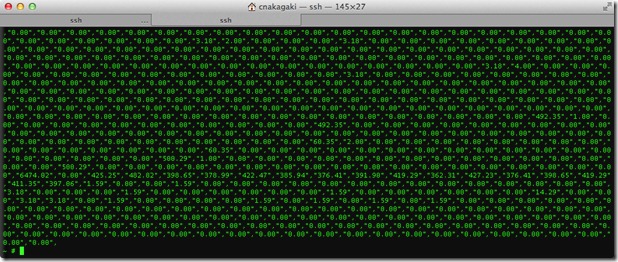
ESXTOP in Mac Terminal looks funky…

Image
Summary: Seems that terminal in Mac is configured in a fashion where esxtop does not display properly.  Thankfully, it’s pretty easy to fix. Example: This demonstrates what you would see when accessing esxtop in a default configured terminal session: Solution: Simply change your terminal emulator session from xterm-256color to ansi, by accessing terminal’s preferences, settings, Advanced, under ‘declare terminal as:’ Open up a new terminal session, run esxtop, and you should end up w/ what looks like this:

VMWare View Powershell useful cmdlet notes.

Summary: I’m just staring to put this together mainly for my own benefit, but if someone else finds this useful, then great.  I’ll be continually adding to this post.  If you’d like to contribute or if I got something wrong please feel free to leave a comment. Notes: Disable Provisioning in all linked clone pools: $pools = get-pool $pools | Update-AutomaticLinkedClonePool -isProvisioningEnabled:$false Gets list of all View related cmdlets: get-command | where {$_.modulename -match 'vmware.view' } #Below is so you can include it into the #add-pssnapin.ps1 under your View installation directory function get-viewcommand {get-command | where {$_.modulename -match 'vmware.view' }} Gets list of pools, max number of VM's, and datastores associated: #Helps in making sure your pools are distributed across evenly among datastores. Get-Pool | Select Pool_ID, MaximumCount, DatastorePaths

SQLPSX, redirected my documents, and 64-bit Windows

Summary: These 3 things don’t really want to work together.  Three issues I’ve noticed w/ SQLPSX, but ways around them to get these awesome cmdlets to work. Based on SQLPSX 2.3.2.1 Workaround: Run the MSI installation.  It defaults to your my documents directory.  Instead redirect the installation directory to your powershell module installation directory. Usually for 64-bit: C:\Windows\System32\WindowsPowershell\v1.0\Modules\ 32-bit: C:\Windows\SysWow64\WindowsPowershell\v1.0\Modules\ These feel backwards to me, but seems to be true. Once installed, you’ll need to copy the module folders into your my documents redirected location.  You can get them from either the 64-bit or 32-bit paths above.  The folders you need to copy are as follows: SQLMaint SQLServer Agent Repl SSIS Showmbrs SQLParser adolib Once you do so, you should be able to run ‘import-module sqlpsx’ successfully.  To find out what new cmdlets are available to you, simpl...