Posts

PowerCLI: The SSL connection could not be established, see inner exception.

Image
Summary: Unable to connect to ESXi/vCenter server with Connect-VIserver cmdlet, get the following error: "The SSL connection could not be established, see inner exception." Be sure to "Set-PowerCLIConfiguration -InvalidCertificateAction:Ignore" if you plan to connect to an ESXi/vCenter that does not have trusted certificate.  Interestingly, something must've changed recently because the PowerCLI module actually would output a more descriptive message about setting your PowerCLIConfiguration. This appears to be the case w/ Powershell Core 6.1.  I'm actually unsure when this behavior started happening and whether is module or powershell related.  Regardless, figured I'd post this since I was initially confused myself when running some things on another system.
Powershell: Making a RESTful API endpoint in powershell (kinda like python flask)

Summary: While running scripts interactively and even on a scheduled basis is fine, I wanted to explore the possibility of making my scripts event-driven.  Take the vCheck Health Script for example.  Running that on a schedule is fine, but what if I wanted to run that on-demand?  Or other scripts in general? The cool thing, you can do it all in Powershell Core!  Meaning, docker, linux, macOS, etc.  Basically, you can have this script run on OS startup (pre-populated with your endpoint configs/scripts) and you would have a Powershell driven REST-style API endpoint to run your scripts. Here is the example, feel free to try it.  It'll do nothing of consequence on it's own.  I'll post later with a video on how to use it.

Powershell Core: DNSClient cmdlets .NET Alternative

Summary: DNS Cmdlets are not available in Powershell Core, but fear not, you can make use of .NET to get effectively the same functions, for DNS resolution anyway. My old post here details how to use .NET method: Useful Powershell .NET method to convert DNS name to IP

VMware: Get CDP/LLDP info from ESXi/vCenter hosts.

Summary: Had to get CDP/LLDP long time ago and never posted it.  Hosted on gist.github.com for anyone to consume and manipulate how they please.  Definitely been useful and faster since it'll actually ignore disconnected nics. Also automatically adjusts for CDP or LLDP.  I 'think' I wrote this, but I borrow so much from Lam and LucD that they deserve credit for being so awesome anyway.

Misc: Navien NPE-240A Navilink App missing scheduling function

Image
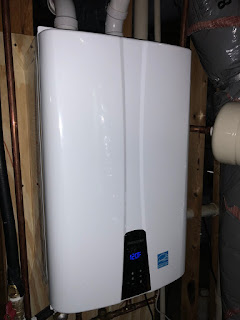
NPE-240A Summary: Just had a new tankless water heater installed in my house to replace a failing 22 year-old 50 gallon tank.  Couldn't be happier w/ my new tankless, but was dealing with weirdness on the Navilink app to control/view my new Navien .  The app's scheduling function (for the recirculation pump) was missing. Solution: NR-20DU Disconnect NR-20DU remote controller. (if you want to schedule via App) *DIP Switches need to be set properly as well. In my case, w/ a bridge valve in my furthest faucet, is considered "External Recirculation". Check w/ your plumber for proper settings, they set mine properly. If you are in the Atlanta area, I highly recommend Plumbing Express LLC . Ask for Jonathan DeWeese. For reference only, these were set correctly by my plumber for my setup. DIP Switch 1 Off, 2 On.  (Internal Recirculation would be the opposite) Parameter 18 set to On (This is to enable Navilink ) These settings are detailed out in t...

Mac: Quick Screen Recording on MacOS (Bonus TouchBar Integration)

Image
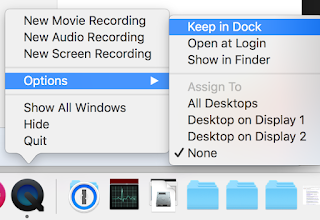
Summary: To launch screen recording w/ Quicktime Player feels really unintuitive.  I'm betting the average person has no idea this capability exists.  I often forget it's able to as well.  Reason being, when you launch Quicktime Player, it defaults to opening a 'finder' window for you to select a file to 'play'.  So here is a way to kind of "shortcut" access to Quicktime screen recording on MacOS. Solution: Launch QuickTime Player "Right" Click on QuickTime Player Dock and Select "Keep in Dock" Now with QuickTime Player in dock, you can "Right Click" the icon and select Screen Recording. Bonus: Macbook Pros with Touchbar will have a smart menu to select capture type.  You can select either full screen recording of each individually attached screen or "selection" which allows you to simply click and drag your mouse on any portion of the screen.

VMware: Custom ESXi boot iso bootable on Fusion, but not vSphere...

Image
Summary: Building an embedded lab for some testing w/ NSX and everything.  Cannot clone a pre-installed ESXi host w/o some magic, so decided to utilize a simple kickstart script in an ESXi custom iso pre-mounted to my VM template.  Worked fine on Fusion, not vSphere/ESXi though... Workaround: Simply change VM Options --> Boot Options to BIOS Fusion defaults to BIOS, which is why it worked.  I made the iso w/o UEFI options which is why it worked on fusion, but not ESXi VM. OR Solution: The command I was using to make the iso was missing some key new features to make the iso UEFI bootable. mkisofs -relaxed-filenames -J -R -o ~/Desktop/custom_esxi.iso -b ISOLINUX.BIN -c BOOT.CAT -no-emul-boot -boot-load-size 4 -boot-info-table -eltorito-alt-boot -eltorito-platform efi -b EFIBOOT.IMG -no-emul-boot ~/Desktop/ESXiDefaultInstall You will have to modify two BOOT.CFG files, one in root directory, and the other in the EFI subdirectory to utilize any custom kick...