Posts

Save PowerCLI Login Credentials to XML Securely (Mostly)

Summary: PowerCLI has a cmdlet that allows you to save your logins to vCenter and ESX(i) hosts to a XML file so you can use those as reference in your PowerCLI scripts when calling the Connect-VIServer cmdlet. How to use it: #This stores your credentials into an xml file. You can open the xml file, but the password is hashed. New-VICredentialStoreItem -Host ESXorvCenterHostname -User root -Password "Super$ecretPassword" -File C:\Whateveryouwanttonameit.xml   #To use the data stored in the XML file, we will call the Get-VICredentialStoreItem and place the data into a variable for use. $Creds = Get-VICredentialStoreItem -Host ESXorvCenterHostName -File C:\Whateveryouwanttonameit.xml #Now you can use the $Cred variable for the username and password switches in the connect-viserver cmdlet Connect-VIServer ESXorvCenterHostName -User $Creds.User -Password $Creds.Password Caveats: XML files can only be referenced from the computer they were created on. Po...
Disable Delayed Acknowledgement Setting in iSCSI Software Adapter using PowerCLI

Summary: Somebody posed this question in the vmware communities forum .  I figured out how to do it cheating w/ Onyx .  Not sure why this is needed (since I don’t use iSCSI much), but figure it’s best I post this for reference if I or anyone needs to do this particular task. Script: #This section will get host information needed $HostView = Get-VMHost NameofESXServer | Get-View $HostStorageSystemID = $HostView.configmanager.StorageSystem $HostiSCSISoftwareAdapterHBAID = ($HostView.config.storagedevice.HostBusAdapter | where {$_.Model -match "iSCSI Software" }).device #This section sets the option you want. $options = New-Object VMWare.Vim.HostInternetScsiHbaParamValue[] (1) $options[0] = New-Object VMware.Vim.HostInternetScsiHbaParamValue $options[0].key = "DelayedAck" $options[0].value = $false #This section applies the options above to the host you got the information from. $HostStorageSystem = Get-View -ID $HostStorageSystemID $HostStorageSystem.UpdateInt...

Hardware.SystemInfo.OtherIdentifyingInfo Blank in PowerCLI

Summary: Using my PowerCLI script to get Dell warranty information, I noticed that some of my ESX hosts were not returning service/asset tag information.  The information was showing up in vCenter's hardware status tab, but not w/ my PowerCLI script. Workaround: First, check to see if your ESX host has this information populated: Connect-viServer ESXHostName $ VMHost = Get-VMHost | Get-View $ VMHost . Hardware . SystemInfo . OtherIdentifyingInfo If the above code returns objects, then the next step is to disconnect the host from vCenter, then reconnect it.  You can use the following PowerCLI code to find all hosts w/ empty properties to do this for you.  As always, test before you try it in a production environment. $ESXHosts = @()   $VMHosts = Get-VMHost | Get-View Foreach ($VMHost in $VMHosts) { $NewObj = "" | Select Name, ServiceTag, AssetTag $NewObj.Name = $VMHost.Name #Replace is used to clean up data that might...

Get ESX Host Warranty Info for Dell Servers

[Update: This code has been updated since it appears the 'OtherIdentifyingInfo' property seems to have problem coming through to vCenter.   Click here to see updated code ] Summary: Needed to get my ESX host warranty info since we haven’t completely deployed our Dell vCenter Plugin .  Here is the code, w/ the Dell Warranty grab code from Marcus Oh .  It’ll get you some additional info too.  You can always edit and remove what you don’t need. Code: $ESXServers = Get-VMHost $ESXServerView = $ESXServers | Get-View $ESXInfo = @()   $oWeb = New-Object System.Net.WebClient   Foreach ($ESX in $ESXServers){ $TargetESXServerView = $ESXServerView | where {$_.MoRef -eq $ESX.Id} $NewObj = "" | Select Cluster, Name, Model, Version, BIOs, ServiceTag, AssetTag, ShipDate, ExpiryDate $NewObj.Cluster = $ESX.Parent.Name $NewObj.Name = $ESX.Name $NewObj.Model = $ESX.Model $NewObj.Version = $ESX.Version $NewObj.BIOs = (($TargetESXServe...

ESX/ESXi Recommended BIOs Settings

Image
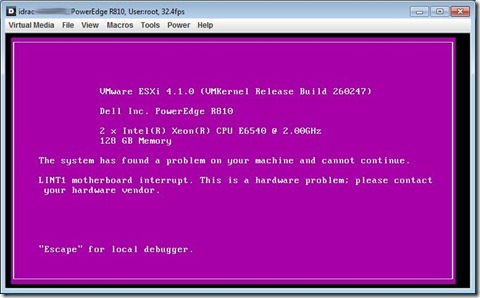
Summary: Came across a PSOD on one my lab manager hosts.  The error read: LINT1 motherboard interrupt.  This is a hardware problem; please contact your hardware vendor Resolution: According to Dell, this occurs because the C1E setting is enabled in the BIOs.  This post helped me from EnterpriseAdmins.org. Finally, it’s mentioned in Page 15 of the vSphere 4.0 Best Practices Guide for recommended hardware BIOs settings.  Guess I need to work w/ Dell to do this for me before sending me an ESX Server.

NFS Datastore appears inactive in vCenter

Summary: This was more of an annoyance for me, but essentially I had two NFS datastores that were mapped incorrectly to some ESX hosts.  Those datastores were unmounted and remounted w/ correct pathing using PowerCLI .  However, one host ‘seemed’ to hold onto the incorrectly mapped one.  This was only reflected in vCenter, not the host itself. Experience: vCenter 4.1 ESX 4.0 U2 Symptoms: When attempting to unmount the following error appears: The object has been deleted or has not been completely created Connecting directly to the ESX host does not show these ‘inactive’ nfs datastores. esxcfg-nas –l within TSM/SC on the ESX host does not show these ‘inactive’ datastores. Resolution: Disconnect ESX host from vCenter Connect ESX host to vCenter. This seems to help vCenter resolve the display issue.  For help on similar NFS issues, this search seemed helpful.

EMC Virtual Storage Integrator (VSI 4.1)

Summary: Upgrading to VSI 4.1 is fairly painless if you followed my last post on 3.0.1 .  You still have to do a couple things for it to work though. PreReq: VSI Installed on server system. Reference last post for install instructions.  Overall same process. Downloaded  VSI Storage Viewer Plug-in 4.1   Record IP's, username's, and passwords of your array connections. Details: Upgrade the version on your server and upgrade the version on your system. Follow step 1 on my last post on the server.  (This is so your local system can connect to the server's solutions enabler service.) Once done, vCenter should show the new EMC VSI icon under 'Solutions and Applications' Other Optional Components: There are additional plug-ins that can be installed to allow self-service operations among other things: VSI Unified Storage Management NaviSphere CLI required for block provisioning UniSphere CLI required for VNXe provisioning VSI Storage Pool...