Posts

View Composer not deleting or spinning up VM’s…

Summary: When deleting VM’s from inventory, View Composer usually starts the job in vCenter within a few minutes.  In this case, it was not and restarting the View Composer service on vCenter didn’t fix it. Config: vCenter 4.1 View 4.5 Resolution: In this particular case, one of my View Connection Broker Replica servers had shutdown and the following logs were seen on my primary connection broker: Event Type:    Information Event Source:    VMware View Event Category:    VMware View Event ID:    102 Date:        10/25/2010 Time:        11:24:51 AM User:        NT AUTHORITY\SYSTEM Computer:    Primary Broker Name Description: The failed LDAP replication attempt to Secondary-Replica Broker Name can be caused by a firewall blocking communication between this server and Secondary-Replica Broker Name o...
Error upgrading VMware Tools.

Summary: When attempting an automatic upgrade of tools on a RHEL VM, the above error shows up w/ no additional details in vCenter tasks & events.  This is a possible bug as the following entries show up in the VM’s vmware.log:   vmx| TOOLS INSTALL Copying upgrader files from /usr/lib/vmware/tools-upgraders into guest at /tmp/vmware-root vcpu-0| TOOLS INSTALL Error copying upgrader binary into guest. success = 0, HgfsStatus = 1 Resolution: Confirm and/or create the path /tmp/vmware-root on the RHEL guest.  In my case, the /tmp/ mount was there, but the sub-directory vmware-root was not.  After creating it, the vmware tools were able to upgrade successfully.  VMWare has a KB that is somewhat related, but only mentions Windows.  I would expect VMWare to create the directory if it didn’t find it, but maybe there is some reason behind this.

Provisioning error occurred for Machine vmname01: View Composer agent initialization failed.

This error may also appear in View’s Event Log: “View Composer agent initialization state error (6): Unknown failure (waited 0 seconds)” View 4.5 Agent apparently still has an issues with the App-V agent or vice versa.  The “Application Virtualization Client” (sftlist) should be disabled or placed into manual mode on your Parent VM.  Rest of instructions on how to combat this can be found here: http://tech.zsoldier.com/2010/03/view-composer-agent-initialization.html

EMC Virtual Storage Integrator (VSI) 3.0.1.5 the, what I hope to be, easy explanation

Image
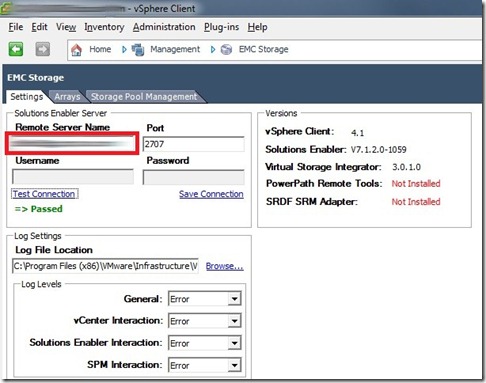
Summary: Everywhere I read and hear “oh it’s easy”.  Yes, it is, but it is so poorly implemented and explained.  The reason is that you need two pieces to make it work, Solutions Enabler and VSI itself.  Here are the steps in nutshell: Recommended Install Steps: Install Solutions Enabler on Windows Server (Linux Server and running this locally is also an option) Can be a VM, but there are some caveats if your ESX hosts connect to vMax/Symmetrix arrays. Choose Complete and leave the rest of options default on install. Open a cmd prompt to the install directory. (Normally C:\Program Files\EMC\SYMCLI\BIN) Run the following commands: stordaemon install storsrvd –autostart stordaemon start storsrvd The VSI 3.1.0 install guide has the above command backwards. Install Solutions Enabler on a system that will be running the vSphere Client (normally your desktop/laptop) Choose Complete and leave the rest of options default on install. Install VSI on the same s...

View 4.5 Post-Synchronization Script not running?

Image
Summary: I have a post synchronization and power-off script that clears some McAfee reg keys, starts App-V services, and other misc. stuff (workaround from 4.0.1) that I’ve ported over to 4.5.  Essentially, I noticed when logging into my View 4.5 systems, this script was not being run for some reason.  Below is what I was seeing in my View pool settings: Notice the Yen symbols?  This likely happened when I recreated these pools and I was typing in “Romaji” instead of “US” on my Mac.  The Yen symbol is the equivalent of backslash(‘\’) on the keyboard and translates fine for most applications, not for View 4.5 apparently though.  This is likely a rare occurrence in which my Japa-cheesyness isn’t so cool. Resolution: Replace the Yen symbol w/ a good ‘ol US backslash(‘\’) as picture below: The good news is that after making this change any new VM’s that spin-up will run the batch files correctly.

API version '4' for vCenter Server '<vCenterName>' is not supported.

Image
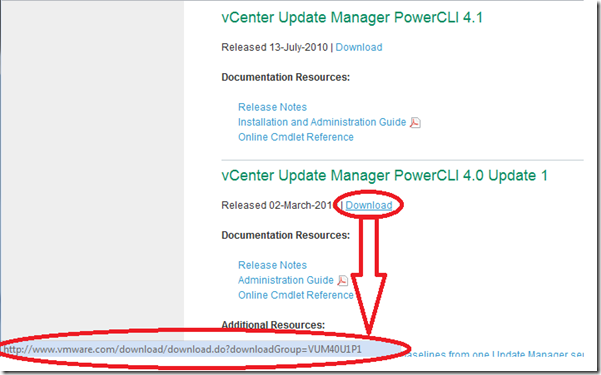
Summary: This helpful message appears when you attempt to use a VUM 4.1 PowerCLI cmdlet against a 4.0 vCenter / Update Manager version. Resolution: Uninstall VUM 4.1 PowerCLI and install VUM 4.0U1 PowerCLI . Takeaway: Read the release notes and hope that VMWare has right download link posted on their site, which as of this posting is wrong.  The link posted above is correct.

Samsung Vibrant and 802.1x WEP…

If there is an easier or non-root required method to what I’ve outlined here, please I’m ALL EARS. Summary: I pretty much hate Samsung or Android, not sure where to direct my h8, but whatever.  I wasn’t going to let it beat me.  Essentially I needed to connect to an AP that uses 802.1x WEP, PEAP, and MSCHAPv2 radius authentication to get access.  Not that difficult on my iPhone w/ the use of profiles, but Android/Samsung wasn’t as easy.  Here it is in a nutshell: Root your Vibrant (SDK method preferred) Use the SDK to pull your current wireless config Modify the wireless config entry you have for the AP that you are trying to connect to. VOILA! successful connection. Nitty Gritty: Follow the instructions on how to root your Vibrant. Once your vibrant has been rooted, you need to download and install the SDK . Turn off your phone’s Wifi, and turn USB debugging on (Settings –> Applications –> Development). This is where it gets interesting (Windows ...